
Support article
Using ACT from sign-in to feedback report
Follow the full ACT guide from account access, role setup and interview practice to progress review and PDF report download.
getting started
Steps and notes
Updated 2026-08-02.
Use this step-by-step guide when you want to complete your first ACT practice from sign-in through to the feedback report.
Create your account or sign in with the same email used for the practice pack purchase.
Open the dashboard and choose Practice now or Add role.
Add the Position Description, Job Description or job ad for the role you are applying for now. You can upload a PDF, DOCX or text file, paste readable text, or use a public URL that does not require sign-in.
If a file is scanned, locked or cannot be read, open the document and paste the readable duties, capabilities, classification, organisation and selection-criteria text instead.
Choose 3 to 5 main questions. The default is 4. The interview also includes one warm-up question.
Review the role summary, classification, organisation and role focus before starting. Correct anything important before the interview starts.
Use Check microphone before starting if you plan to speak. If speaking is not practical, use the typed-answer option.
Start the interview only when you are ready. A practice credit is used when the interview starts, not while you are setting up the role or reading a report.
Answer the warm-up and main panel-style questions with specific examples and clear results where possible.
If microphone trouble prevents a detailed first answer, use Start again for free from the interview room. If speech capture is still not practical, type the answer and save it.
When the interview finishes, keep the tab open while the practice report is prepared.
Open the report to review readiness, strengths, gaps, question feedback, improvement suggestions and next-practice actions.
Open Progress to compare reports. Use This role for the cleanest comparison across attempts for the same Position Description, or Portfolio view for broader practice history.
Use Download report on the report page to save the PDF feedback report.
Use the support assistant when you need help finding a screen or understanding what to do next. Create a support ticket if the assistant and articles do not solve the issue.
Full guide
Step-by-step ACT guide
Use these steps when setting up a role, starting practice, reviewing feedback and downloading the PDF report.
Step 1
Open the help centre or sign in
Use the support centre when you want to browse help before signing in. If you have already bought a practice pack, sign in with the same email address used at checkout.
The full setup guide is public. Signed-in users also get app links that open the support assistant and highlight supported controls.
You can read help articles without signing in.
Interactive help, guided links and support tickets are available after sign-in.
Step 2
Start a new practice role
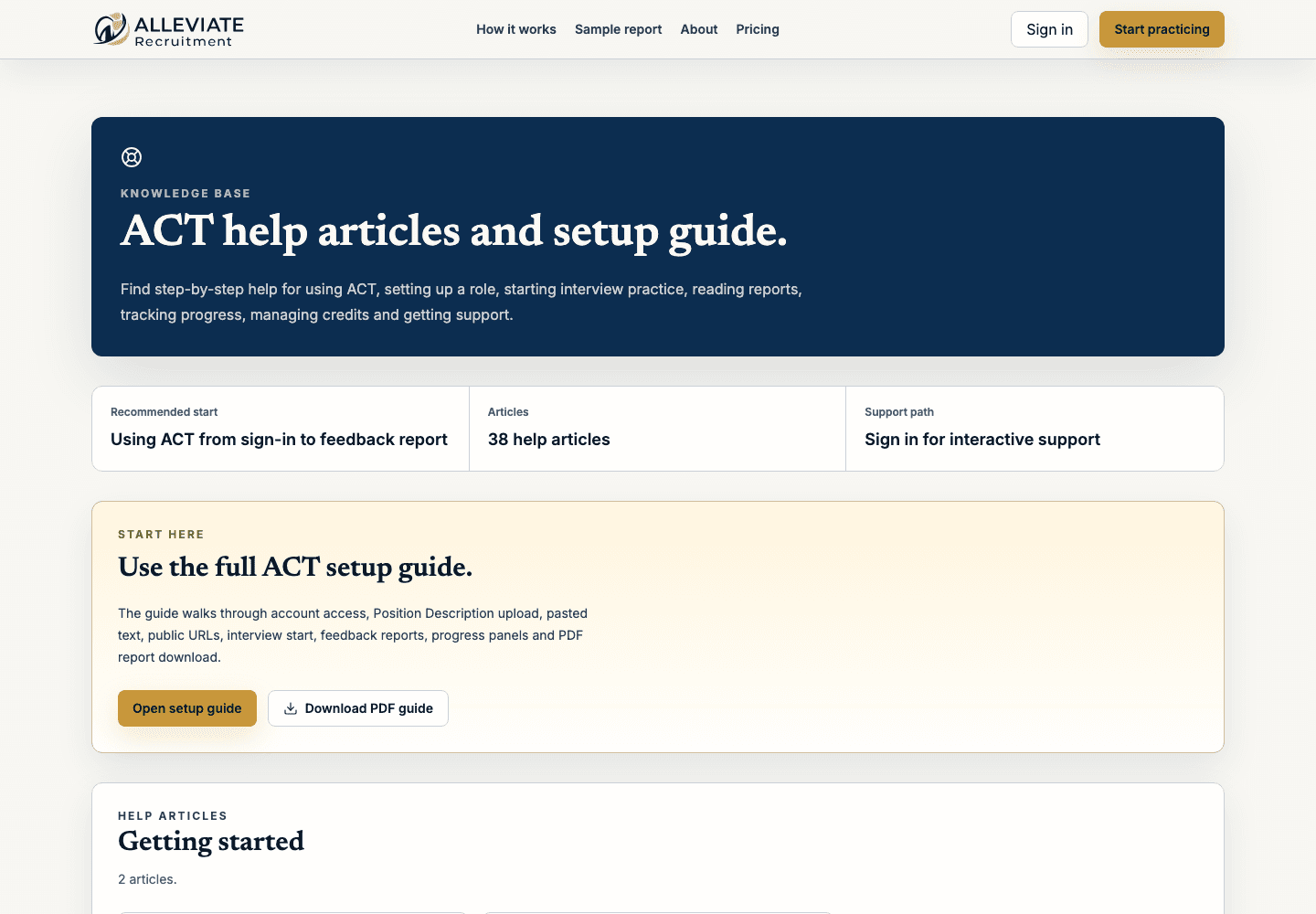
From the dashboard, choose Practice now or Add role. This starts role setup for the interview you are preparing for now.
Role setup does not use a practice credit. A practice credit is used when the interview starts.
You should see the role setup screen.
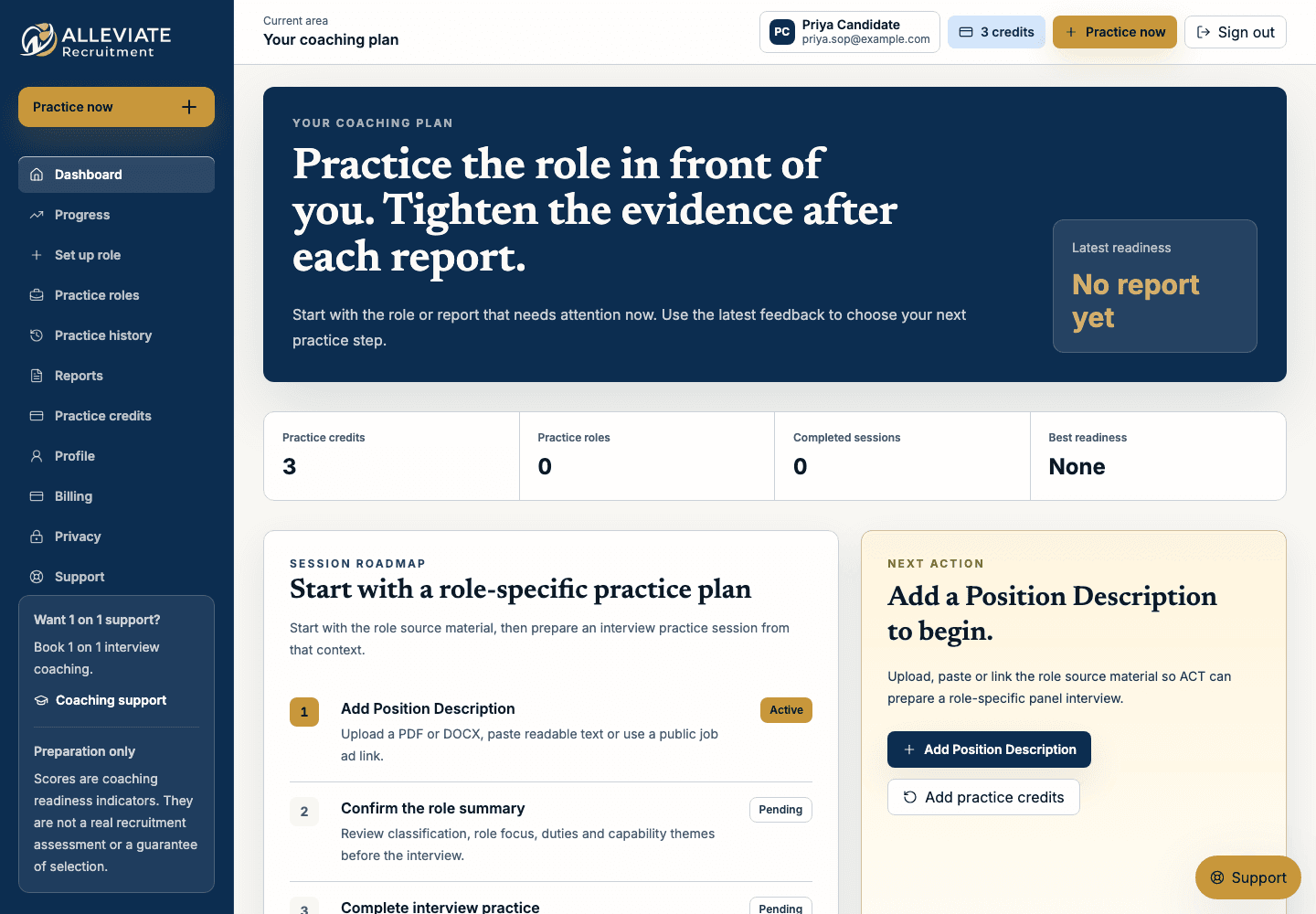
The screen should show your practice credit balance and the Position Description options.
Step 3
Upload the Position Description file
Choose Upload when you have a PDF, DOCX or text file. Use the Position Description where possible, or use the Job Description or job ad if that is the material you received.
After choosing the file, select Prepare interview. Keep the tab open while the role summary and interview preview are prepared.
PDF, DOCX and text files are supported.
If the file is scanned, locked or too short, use the paste option instead.
Step 4
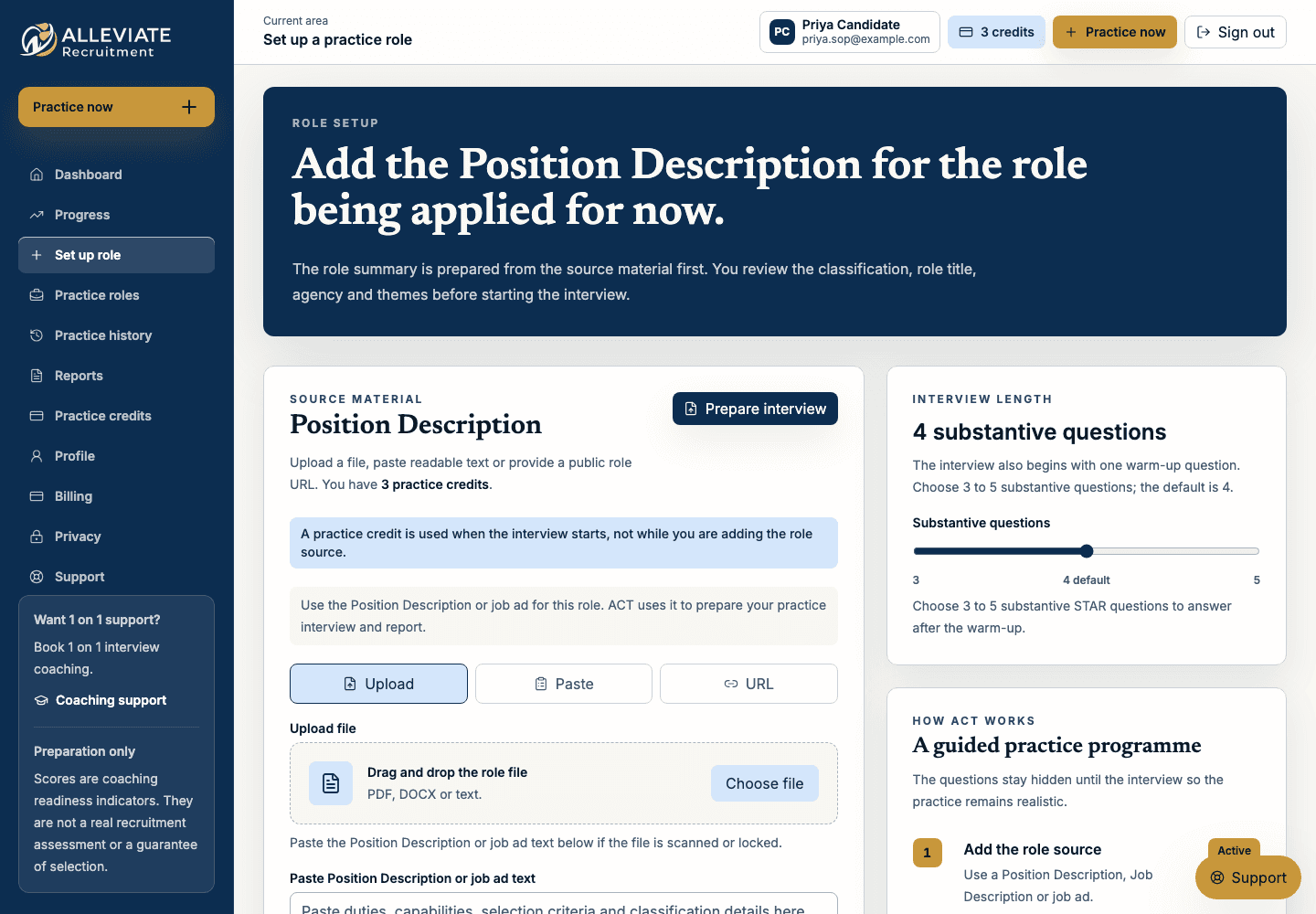
Paste readable role text
Choose Paste when upload or URL reading cannot continue. Copy the readable duties, capabilities, classification, organisation and selection criteria into the text box.
Pasting readable text is also the best recovery path for scanned or locked files.
The pasted text should be at least a few paragraphs.
Do not paste passwords, private links or unrelated personal information.
Step 5
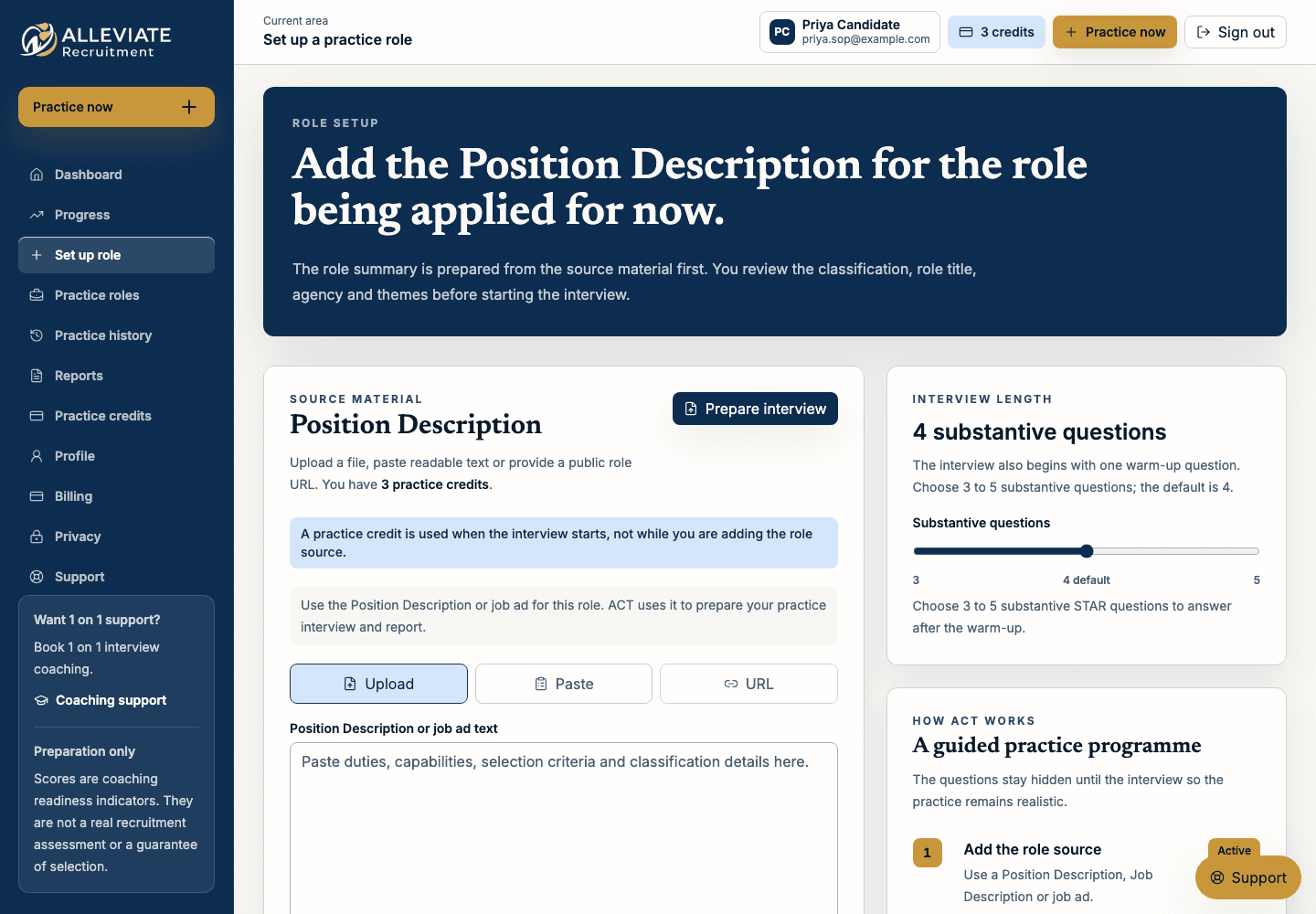
Use a public role URL
Choose URL when the role page or public document is available online. The URL must start with http or https and must not require sign-in.
Public job pages and accessible public document links can work. If the page blocks access or cannot be read, paste the readable role text instead.
Use public URLs only.
Do not use private, password-protected or expiring document links.
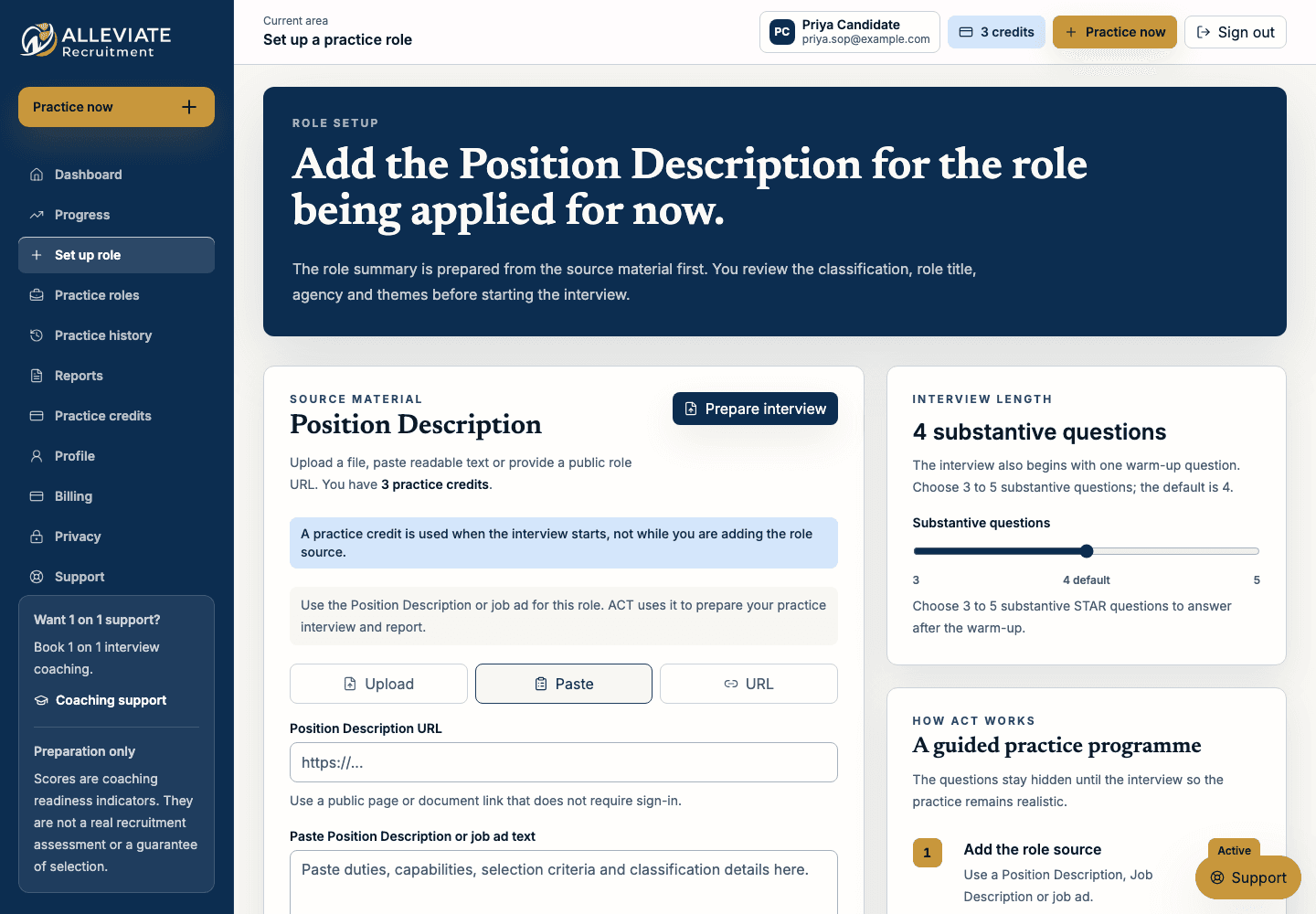
Step 6
Review the interview preview
Review the role summary, organisation, classification, role focus and interview settings before you start.
Choose 3 to 5 main questions. The default is 4. The interview also begins with one warm-up question.
Correct important role details before starting.
Start only when you are ready, because a credit is used when the interview starts.
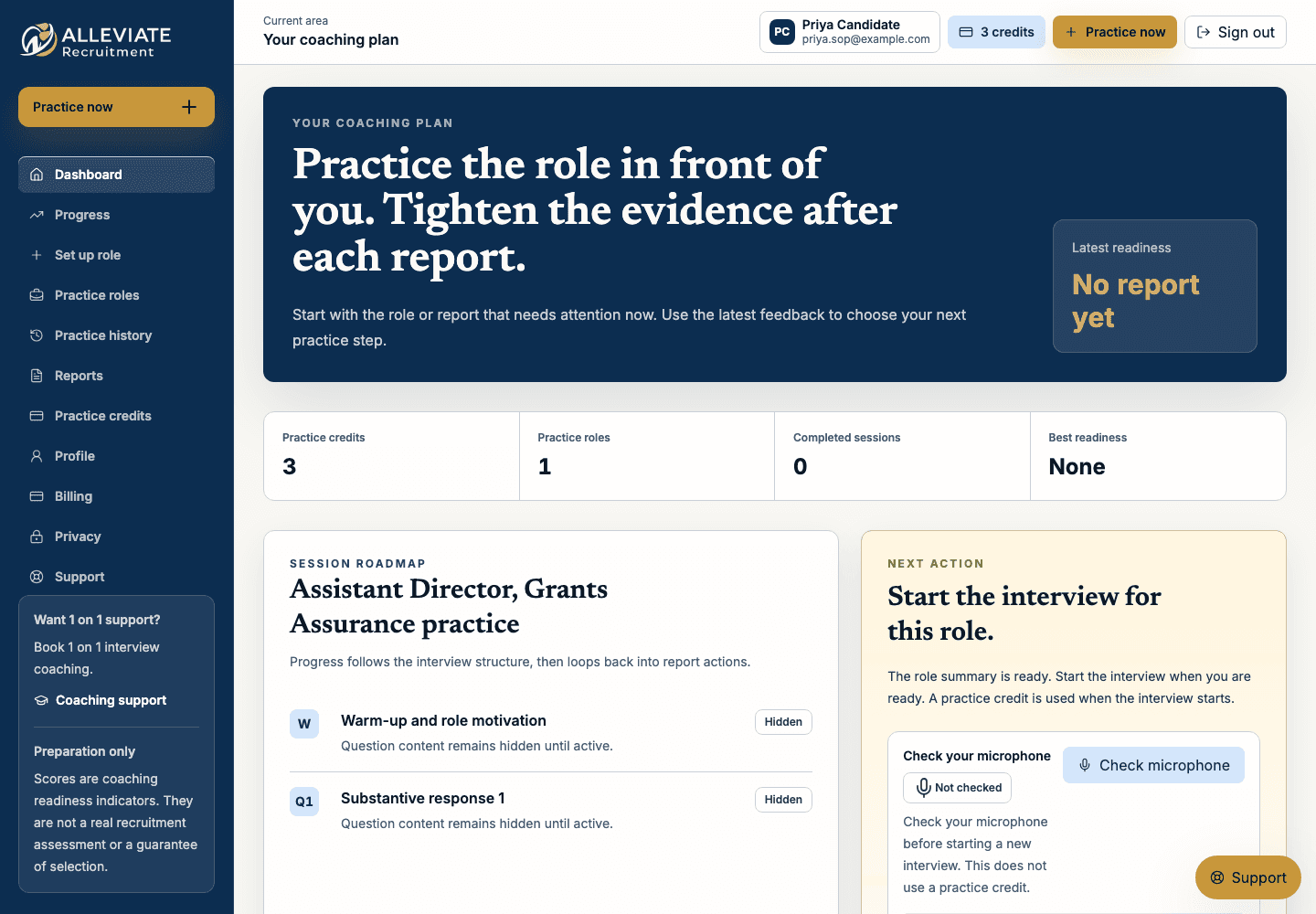
Step 7
Check microphone and recover if needed
Use Check microphone before starting if you plan to speak. If microphone access fails and you cannot fix it, choose the typed-answer fallback.
If microphone trouble prevents a detailed first answer, use Start again for free from the interview room.
The panel asks the question first, then ACT listens after the panel audio finishes.
Typed answers are assessed in the same preparation-only way as spoken answer transcripts when the fallback is needed.
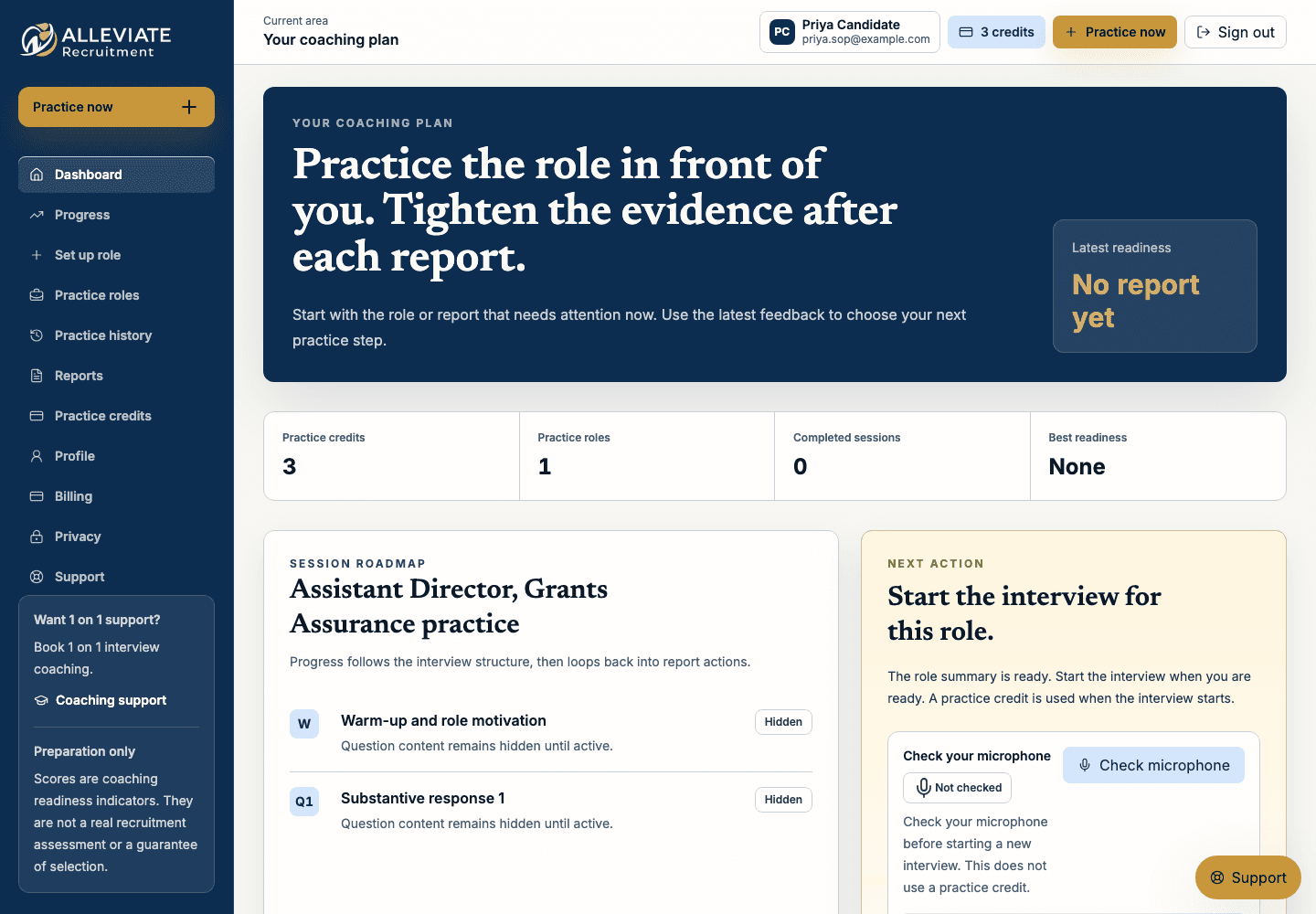
Step 8
Complete the interview and open the report
Answer the warm-up and main panel-style questions using specific examples and clear results where possible.
After the final answer, keep the tab open while ACT prepares the practice report.
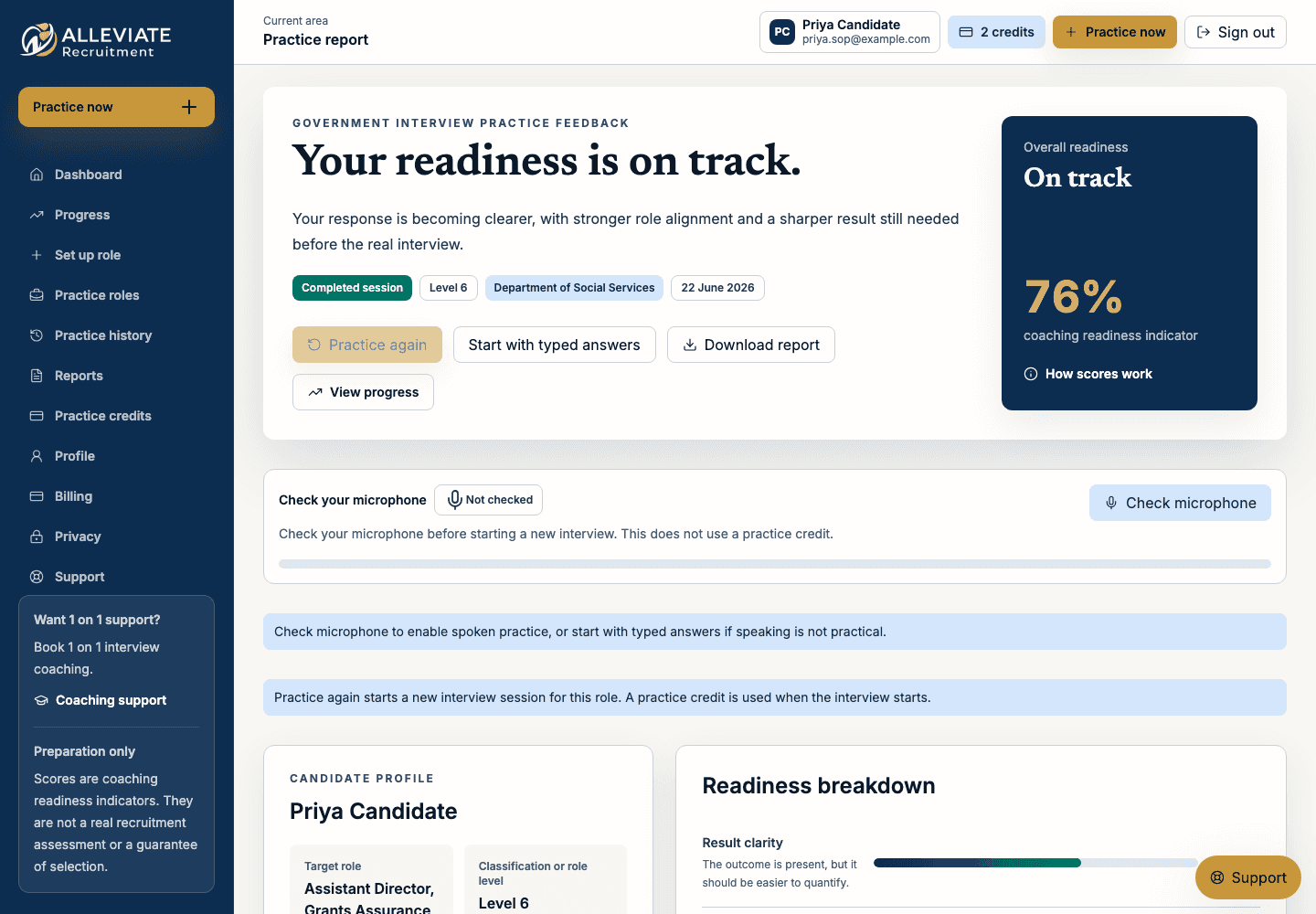
The report shows readiness, score bands, strengths, gaps, answer feedback and next-practice actions.
Readiness is coaching feedback for practice, not a recruitment assessment or guarantee.
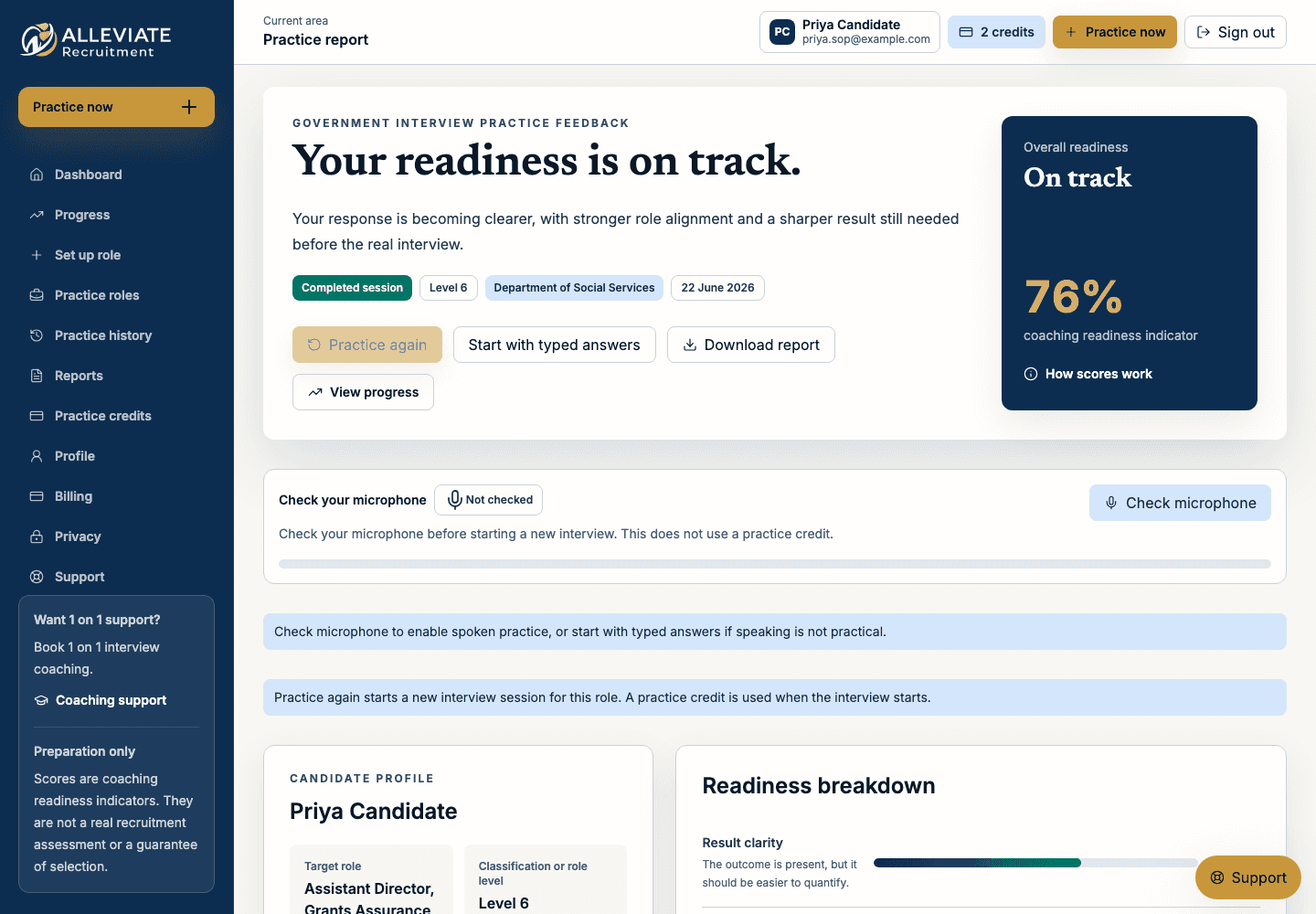
Step 9
Download the PDF feedback report
Open the report and choose Download report. The PDF is generated from the saved report and role state.
Use the PDF when you want to review the feedback beside your real interview preparation notes.
The report downloads as a PDF file.
If the download does not start, refresh once and create a support ticket if the problem continues.
Step 10
Use Progress and support when needed
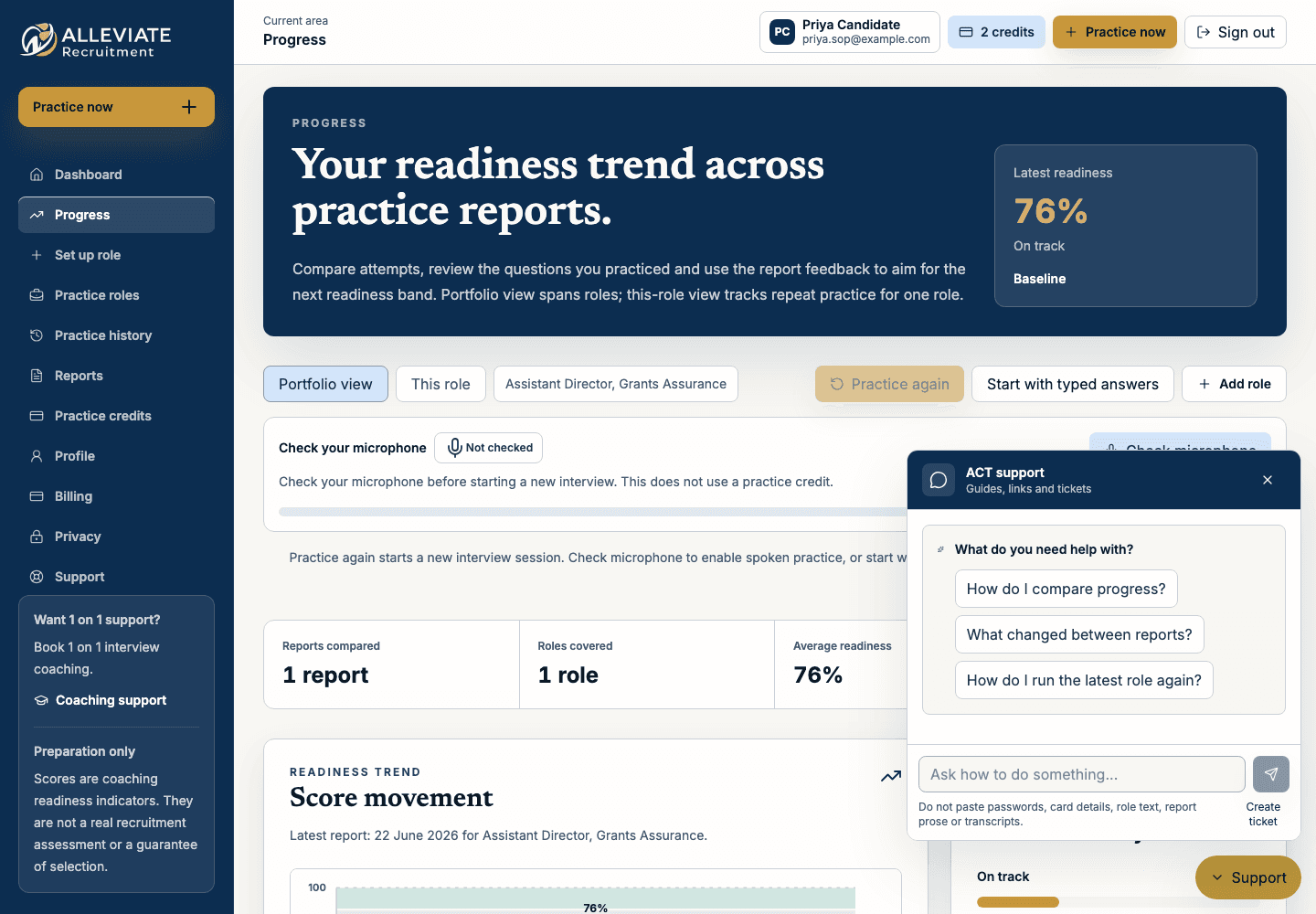
Open Progress to compare readiness movement, report scores, question feedback and focus actions across completed reports.
Use This role for repeat attempts on one Position Description, or Portfolio view for broader practice history. If you are stuck, open the support assistant and ask one question before creating a general ticket.
Progress appears after the first report.
Support tickets should describe the screen, action, expected result, actual result and deadline impact without sensitive role or answer text.
Want the printable guide?
Download the PDF version with screenshots if you want to keep the full setup guide open beside ACT.
Related articles
Still stuck?
Ask the support assistant one question, then create a ticket if the answer does not solve the issue.